
Write a template
A template is an ordinary Word document (.docx), or an Excel workbook or PowerPoint presentation (see below). Where the data goes, you type a tag between << and >>. DocIbis reads the same tags as Docmosis, so existing Docmosis templates work as they are.
The data
Section titled “The data”Your application sends JSON, for example:
{ "client": { "name": "Marie Dupont", "vip": true }, "date": "2026-10-17", "lines": [ { "label": "Licence", "quantity": 1, "price": 4800 }, { "label": "Training", "quantity": 2, "price": 600 } ]}The tags
Section titled “The tags”| In the Word template | Produces |
|---|---|
<<client.name>> |
a value of the data |
<<price{numFormat='#,##0.00'}>> |
a formatted number |
<<date{dateFormat='dd/MM/yyyy'}>> |
a formatted date |
<<cs_{client.vip = true}>> … <<else>> … <<es_>> |
a section shown only when the test is true |
<<rr_lines>> … <<er_lines>> |
one table row per item of lines |
<<rs_lines>> … <<es_lines>> |
one section per item |
<<$itemNum>> |
the number of the item in a repeat |
<<{toUpper(client.name)}>> |
an expression with functions |
<<op:client.address2>> |
a paragraph removed when the value is empty |
<<link:client.website>> |
a hyperlink |
<<{qrcode(contract.link)}>> |
a QR code; barcode(…) for a barcode |
an image with the bookmark imgfit_logo |
the image of the field logo, fitted |
The console lists every tag in Help → Writing a template and in the Tag cheat sheet of the Try page.
Excel and PowerPoint templates
Section titled “Excel and PowerPoint templates”A workbook (.xlsx, .ods) or a presentation (.pptx, .odp) takes the same tags, typed in cells, text boxes and slide titles. LibreOffice always produces these documents.
- Repeated rows:
<<rr_lines>>in the first cell of a sheet or table row and<<er_>>in the last one repeat the row for each item. - Numbers and dates: a cell holding a single field (
<<price>>) gets a real number, or a real date for a value like2026-11-06, so formulas can compute with it. - Formulas and charts of a workbook: a formula of the repeated row (
=B5*C5) is copied to each row; a sum or a chart that covers the row covers all the rows produced. LibreOffice computes everything again before writing the document. - Formats: a workbook gives PDF,
xlsxorods; a presentation PDF,pptxorodp. - Refused: macros, links to other files, data connections, OLE objects and formulas that call an address (
WEBSERVICE,DDE), embedded objects included.
Charts
Section titled “Charts”A Word or PowerPoint chart shows the data of the document: name it chart_sales (Selection pane, or alt text). DocIbis replaces its categories and series; the template keeps the chart type, colours and layout.
"sales": {"categories": ["Q1", "Q2", "Q3"], "series": [{"name": "2025", "values": [120, 150, 90]}, {"name": "2026", "values": [130, 160, 95]}]}- One series:
"values": [120, 150, 90]instead ofseries; it keeps the name of the template. - From a list: named
chart_sales(quarter, amount), the chart reads the listsales, the one of a<<rr_sales>>table for example: the first field gives the categories, each other one a series. - A series beyond those of the template gets a colour of its own; the chart title takes tags (
Sales <<year>>). - Without data, the chart goes, as an image does. In a repeat, each copy has its own chart.
- The charts of an Excel workbook read the sheet: they follow its repeated rows.
PDF forms
Section titled “PDF forms”A PDF with form fields (a CERFA, for example) is a template as it is: send it as template, or keep it in the library and call it by templateName. DocIbis fills its fields with the data, without LibreOffice.
- Field names. A field reads the data at its name (
client.cityreads{"client": {"city": …}}), or at the last part of its name without index when no other field ends the same way:topmostSubform[0].Page1[0].Name[0]readsName. The Try page,POST /v1/templates/analyzeand the library list the fields under the names to use, with sample data. - Values. A check box is ticked by
true,"yes","oui"or1; a radio group or a list takes one of its options. In a row of boxes of fixed length (a date as DDMMYYYY, a company number), a date or a number loses its separators:08/11/2026or2026-11-08gives08112026. - Locking. The fields filled are locked; the others stay open, for what is filled by hand (place, date, signature). Fields without data are reported as for any template (
X-Missing-Fields). - What applies. Passwords, permissions and the seal; not PDF/A, watermarks or tagged PDF. Hybrid forms (fields plus XFA, as many CERFA forms) are filled through their fields; dynamic XFA forms are not. A PDF without fields is a fixed PDF, to join in a bundle or a batch.
Tested on ten CERFA forms from service-public.fr: the seven with fields fill, accents, euro sign and boxes included; the three without fields are refused with a clear message.
What you get
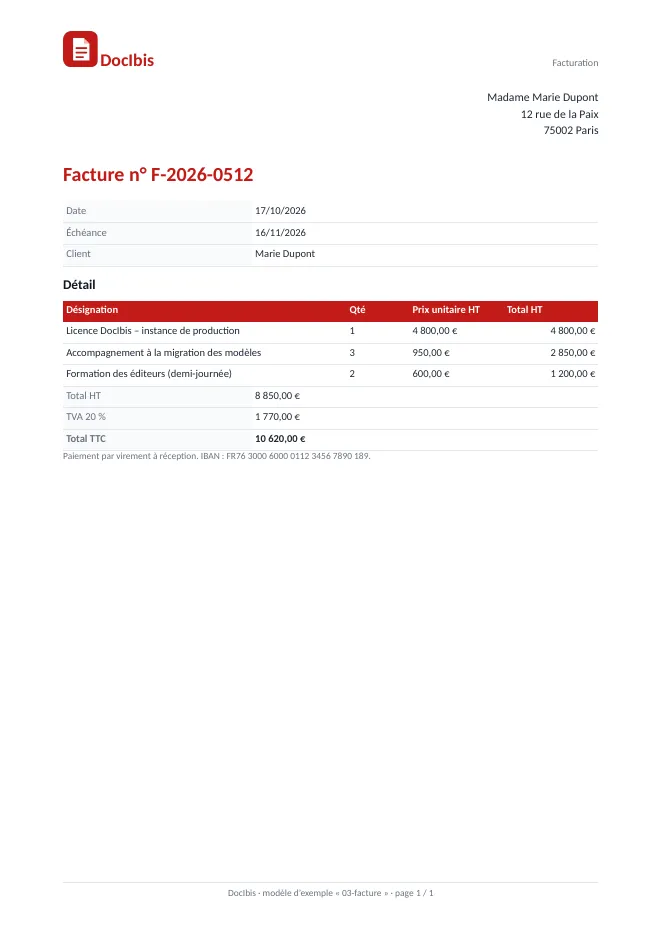
Section titled “What you get”The example invoice and its data give this PDF, with the rows repeated and the totals formatted:
Before publishing
Section titled “Before publishing”- Checks at import. DocIbis reads the template when you add it and reports what would fail, such as a section that is never closed.
- The data it expects. The console lists the fields the template uses and generates sample JSON.
- Versions. Each upload creates a version. Applications always get the published one; you can plan a publication at a date and go back to the previous version.
- Names. Rename a template and its old path stays a former name: applications that still call it keep working until an administrator removes it. Merging two templates adds the other’s missing versions, in their order, and keeps its names.
- Reference documents. Attach the PDFs a template must reproduce (for example the ones Docmosis made): DocIbis compares each new version with them, page by page.
- Data check. Per template, choose what happens when the data lacks a field: refuse the call (
strict), report it in theX-Missing-Fieldsheader (warn), or ignore it (off).
In Word: the add-in
Section titled “In Word: the add-in”A DocIbis pane in Word helps write a template without leaving the document:
- Tags: inserts a field, or a tag of the cheat sheet, in place of the selection.
- Check: reads the document being written as the library does (tags, sections, fonts…); Find selects the tag at fault in the document.
- Preview: produces the PDF with sample data you can edit.
To install it, open Integrations in the console, download the manifest of your instance, then in Word choose Insert › Add-ins › My Add-ins › Upload My Add-in (a Microsoft 365 administrator can also deploy it for everyone). The pane signs in with a personal token (Profile › Personal tokens) and calls POST /v1/templates/analyze and POST /v1/render. It is served at /word/; Caddy lets Office frame that path only (frame-ancestors) and lets it load Office.js from Microsoft.