
Settings and AI providers
Open Settings to see the available AI providers and connection status. Passwords and second factors are managed under My profile.
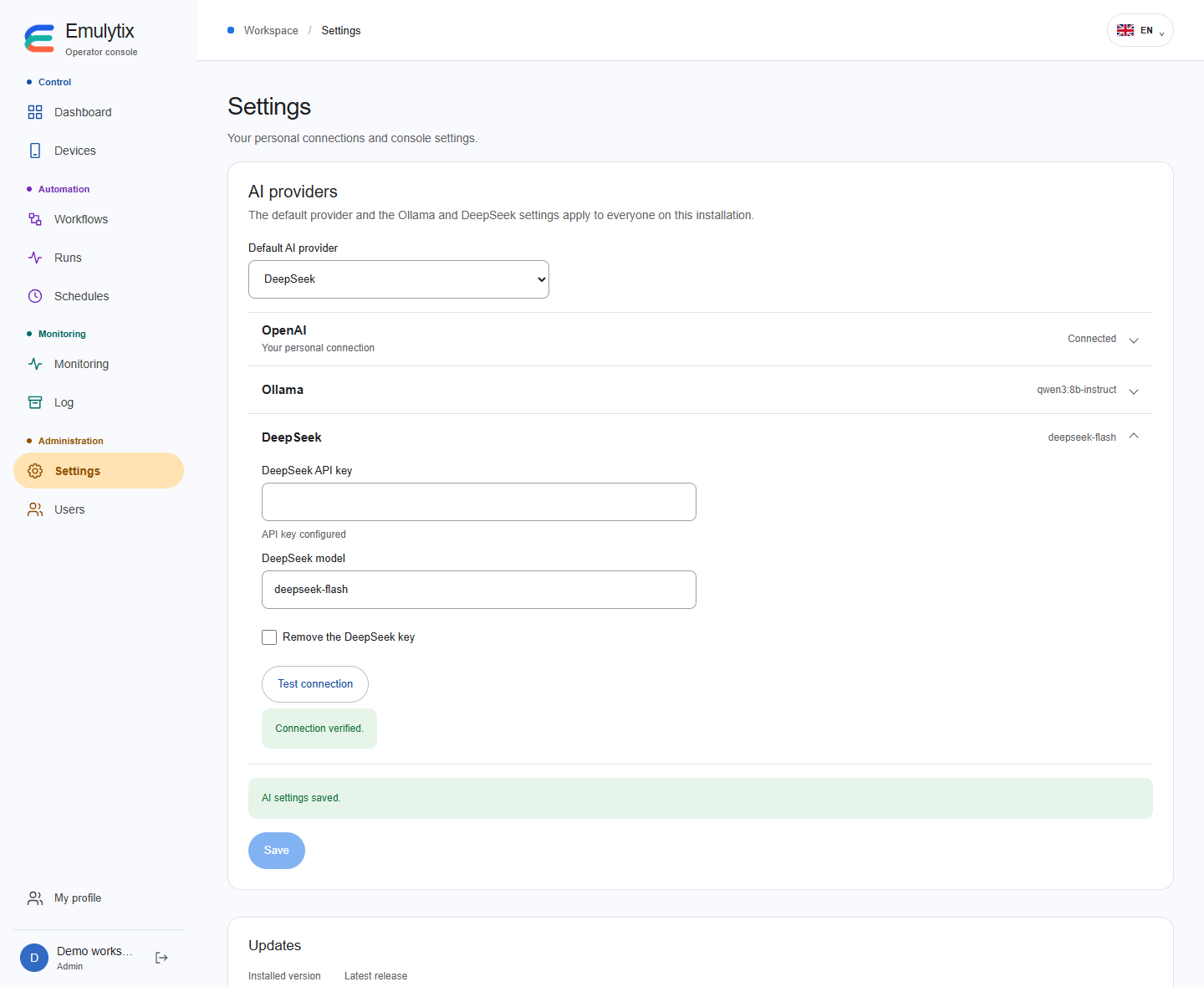
Settings in a demonstration workspace.
Updates
Section titled “Updates”Administrators can see the installed version, the latest stable release and the installation status under Settings → Updates. Choose Update to preview the GitHub release notes, then confirm the restart. Keep the console open or return to Settings to read the result. Set up the host updater.
Connect OpenAI
Section titled “Connect OpenAI”- In Settings → AI providers, open OpenAI and choose Connect my ChatGPT account.
- Open the official URL supplied by the device-code flow.
- Sign in with your ChatGPT account and enter the displayed device code.
- Return to the console and wait for confirmation.
Wait for confirmation in the console. A pending code expires or can be canceled. You can disconnect your account from the installation later.
Each OpenAI connection belongs to one local user. The server uses an isolated official Codex process and encrypted storage.
Configure and activate an AI provider
Section titled “Configure and activate an AI provider”In Settings → AI providers, administrators set OpenAI, DeepSeek, or Ollama as the installation default. Open a provider’s row to view or edit its settings. Each user connects their own OpenAI account to generate journeys with OpenAI.
For DeepSeek, an administrator enters the shared API key and the model name. The server encrypts the key and Settings displays a saved indicator. Leave the key field blank to keep the current key. DeepSeek receives the text of the generation request over HTTPS. DeepSeek API documentation
For Ollama, an administrator downloads the model with ollama pull <model> and enters its exact tag and the shared server URL reachable from Emulytics. For Ollama running on the Docker host, use http://host.docker.internal:11434. If it listens only on 127.0.0.1, set OLLAMA_HOST to an address reachable from the Docker network and restart Ollama. Use a private IP address for a server on your local network. To keep inference local, set OLLAMA_NO_CLOUD=1 on the Ollama server. Ollama documentation
The installer can also provide defaults through the existing EMULYTIX_OLLAMA_URL, EMULYTIX_OLLAMA_MODEL, EMULYTIX_DEEPSEEK_API_KEY, and EMULYTIX_DEEPSEEK_MODEL settings in .env.console.
Test a connection
Section titled “Test a connection”Open a provider and choose Test connection. For OpenAI, the test uses your connected account to make a short request. Administrators can test Ollama and DeepSeek after saving their settings. Those tests look for the configured model on the server and verify DeepSeek accepts the saved key. A test does not create a draft or start an emulator.
Use AI in the workflow editor
Section titled “Use AI in the workflow editor”The Wikipedia and Android-version reference goals use built-in rules and templates. For other supported instructions, the workflow editor uses the configured default to suggest cards from a description and to prepare actions from the current cards. You can choose another configured provider from the editor for that draft. Workflow editor guide
The provider receives the text and the available app context for the task. The console checks the proposed steps against the Android driver’s allowed actions. Review the draft, publish it and test it on a device.
Deployment settings
Section titled “Deployment settings”Configuration variables retain the EMULYTIX_ prefix. The installer creates a private .env.console. Keep its encryption key and database credentials with the installation’s backup.
For remote console access, terminate HTTPS at a trusted reverse proxy, set EMULYTIX_PUBLIC_ORIGIN to the exact public origin and enable secure cookies. The default port remains bound to loopback.
The OpenAI device-code integration targets the local, self-hosted application. For a commercial hosted service, see Sign in with ChatGPT.