
Devices and emulators
Create a managed emulator
Section titled “Create a managed emulator”Open Devices → Create an emulator, enter a human-readable name, choose a worker host and select applications. Names can contain spaces; technical identifiers are generated for you.
Chrome comes from the runtime image. Uploading a standalone APK identifies its package. The dialog shows the applications selected for this emulator and lets you remove them individually.
Select Install Aurora Store to add the latest stable APK from Aurora OSS. Emulytics checks the APK signature and saves the exact version with your emulator. Prepare applications installs it alongside your other selections.
Find an APK in a store
Section titled “Find an APK in a store”- In Desired applications, search once across F-Droid, Aptoide and APKMirror by application name or package ID. Results identify their source and show available versions and dates.
- For F-Droid or Aptoide, select a compatible version and choose Import APK. For APKMirror, open the release page and download a standalone APK compatible with Android 10 x86, then upload it in the form. APKMirror bundles use the
.apkmformat. APKMirror FAQ - Complete the emulator configuration, then run Prepare applications to install and check the selected APKs.
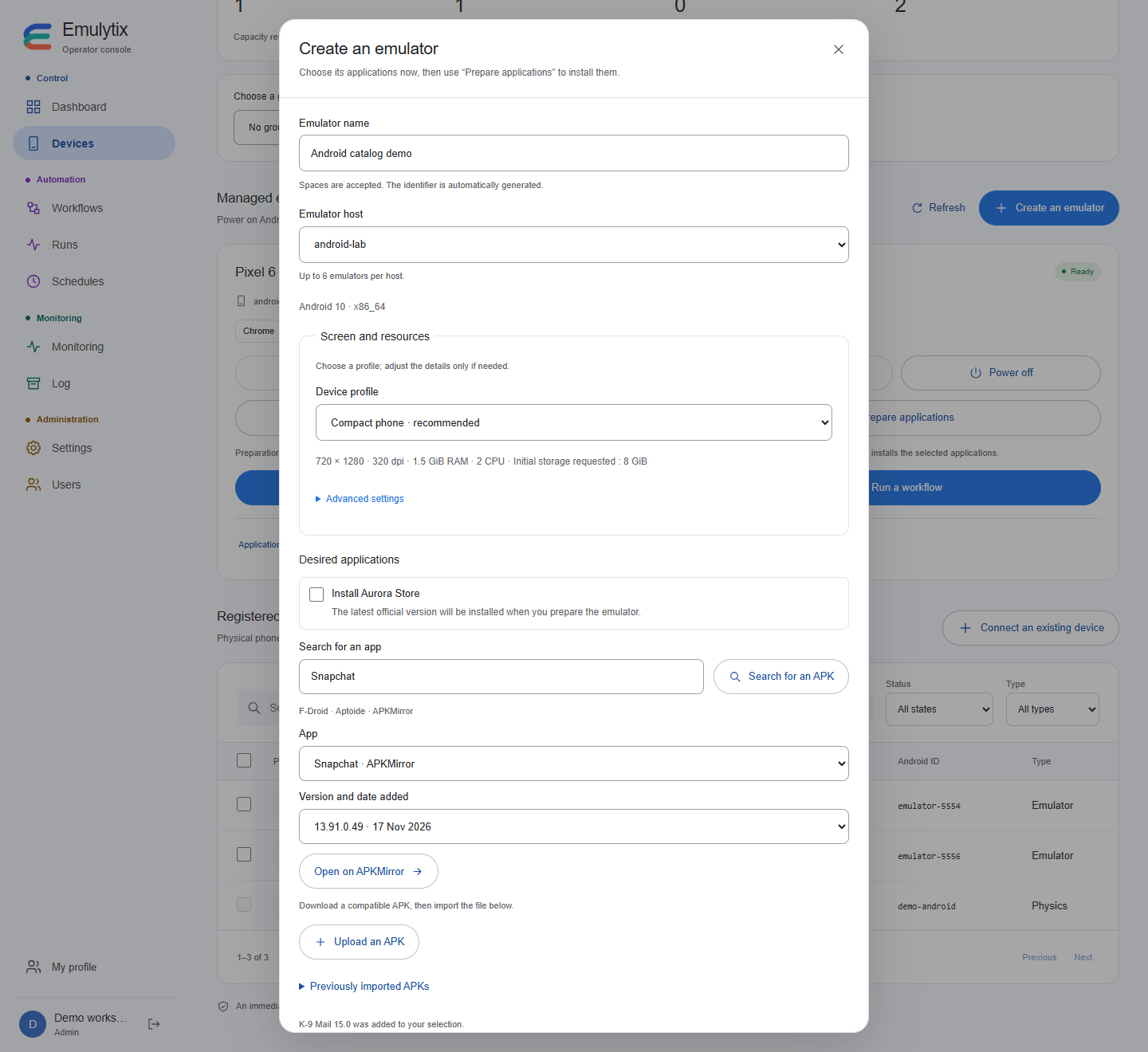
Catalog search in a demonstration workspace.
Use Aptoide to look for applications such as Snapchat and LinkedIn. A listed application may have no verified standalone build compatible with Android 10 x86. The Web label identifies the Snapchat web wrapper. Emulytics checks the APK and its signing certificate for Aptoide imports. Android rejects a downgrade when a release with a higher version code is already installed. You can upload a compatible standalone APK directly.
The controls have separate effects:
| Control | Effect |
|---|---|
| Power on | Start Android without installing missing applications |
| Prepare applications | Start if needed, install the selected verified APKs and check installation |
| Power off | Stop the emulator while preserving its data volume |
| Launch a journey | Use an emulator whose applications and Android connection are ready |
Deselecting an application does not uninstall it.
Screen and resources
Section titled “Screen and resources”Presets and advanced settings cover width, height, density, RAM, CPU cores and initial storage. The recommended profile is 720 × 1280 at 320 dpi, 1536 MiB RAM, two CPU cores and 8 GiB initial storage.
Screen, RAM and CPU changes require a stopped emulator without queued work or an active or uncertain lease. The next start reuses the owned data volume and verifies the applied display profile. Storage can be chosen before initialization; resizing an existing Android data image is not supported.
Configured storage and measured Android capacity are different values. A value shown as unmeasured is not replaced with an invented capacity.
Register an existing device
Section titled “Register an existing device”Use the existing-device flow for a physical Android device or an external emulator. Choose the worker host and exact ADB serial. Registering a label does not connect a phone, authorize USB debugging or start an emulator.
Admin and Operator can manage devices. Builder can launch published journeys on a device that is already ready.
Edit or remove a device
Section titled “Edit or remove a device”In Devices, choose Edit to change the device’s display name. For a managed emulator, open its controls to power it on, prepare applications, or power it off. External emulators and physical devices are powered on and off from their own host or hardware.
Use Remove from inventory to retire a device. Stop a managed emulator before removing it. Finish queued or active work and update any enabled schedule that targets the device. Run history and the stopped emulator’s Android data are retained.
Groups and capacity
Section titled “Groups and capacity”Create a named group, select its devices, then use the available group actions. Bulk power and application preparation apply only to managed emulators explicitly selected in the interface. Physical devices do not gain virtual power controls from group membership.
Capacity is based on fresh worker heartbeats and available devices. One worker process executes one journey at a time, and one device has at most one active execution. Additional workers and devices can increase concurrency within the host’s actual CPU, memory and storage limits. The 100-device request limit is a contract limit, not a load-test result.