
Create and publish journeys
Write the steps as cards
Section titled “Write the steps as cards”Open Workflows → Create a workflow. Write what Android should do in each card using the app’s everyday name. Add a verification when you want to check a result. For example, write Open the phone settings in one card and Read the Android version in the next. Add, reorder or remove cards as needed.
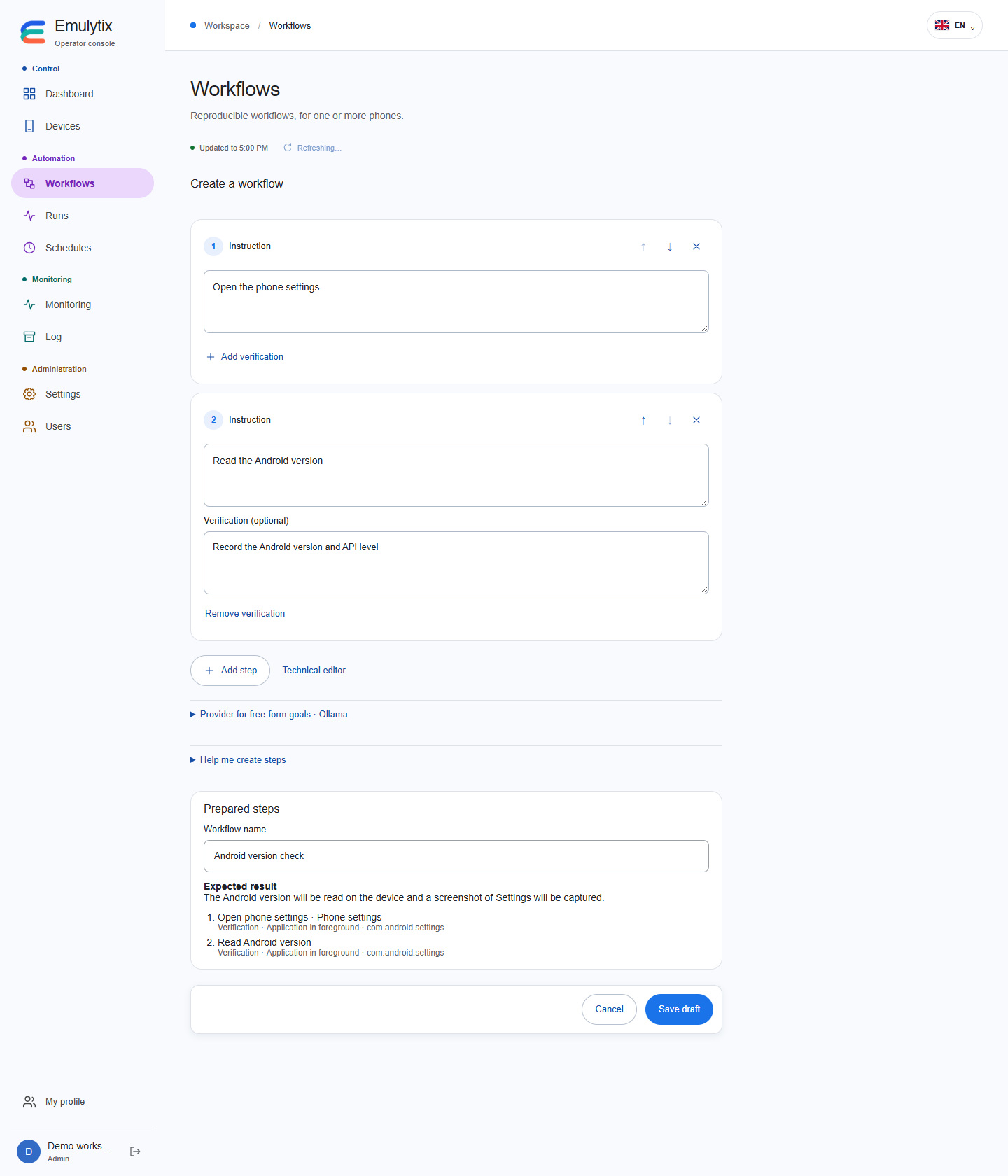
Choose Help me create steps to describe the whole task and ask your configured provider to suggest cards. Edit the suggestions just as you would edit a manually written card. AI provider setup
Prepare and review
Section titled “Prepare and review”Choose Prepare workflow to review the Android actions for the current cards. When a card needs more detail, the message appears next to that card. Edit it and prepare again. Android runs the reviewed actions when you publish and confirm a test.
The Wikipedia search and Android-version examples use built-in rules. Other supported instructions use the configured provider. The console checks the actions the driver can execute, such as opening an app or web page, reading Android version information and taking a screenshot. When the editor already has a target device, supported preparation can use known apps on that device.
Drafts and versions
Section titled “Drafts and versions”A draft remains editable. Each published version keeps its own ordered cards, Android actions and name. Runs and schedules continue to use the published version they selected.
Open Technical editor to edit Android actions and assertions directly. Older workflows open there with their original actions. Changing those actions makes the technical definition the source for that draft.
Concurrent draft changes are detected by revision. A stale save is refused instead of overwriting someone else’s work.
Remove a published version
Section titled “Remove a published version”Admin and Builder have Delete under Published versions. The confirmation identifies the journey and version number.
Deletion removes that version from future launch and scheduling choices. Its definition, historical results and screenshots remain available. The draft is retained; publishing again creates a higher version number instead of reusing the deleted one.
A version cannot be removed while any schedule references it, including a paused schedule, or while related work is queued or active. The dialog explains the blocker. Remove the referencing schedule or wait for the work to finish, then try again.
A repeated confirmed deletion is safe after a lost response. An old launch dialog receiving a deleted-version response releases its pending request so you can choose another published version.