EvPortal guide for the Tesla browser
A shortcut dashboard for your Tesla
EvPortal is a free, independent dashboard that brings your favourite websites together on a page designed for the Tesla browser. You can also use it in a browser on your phone or computer. Large icons open your chosen services without filling the home screen with text or widgets. Customise your shortcuts, categories and their order, then choose a light or dark theme.
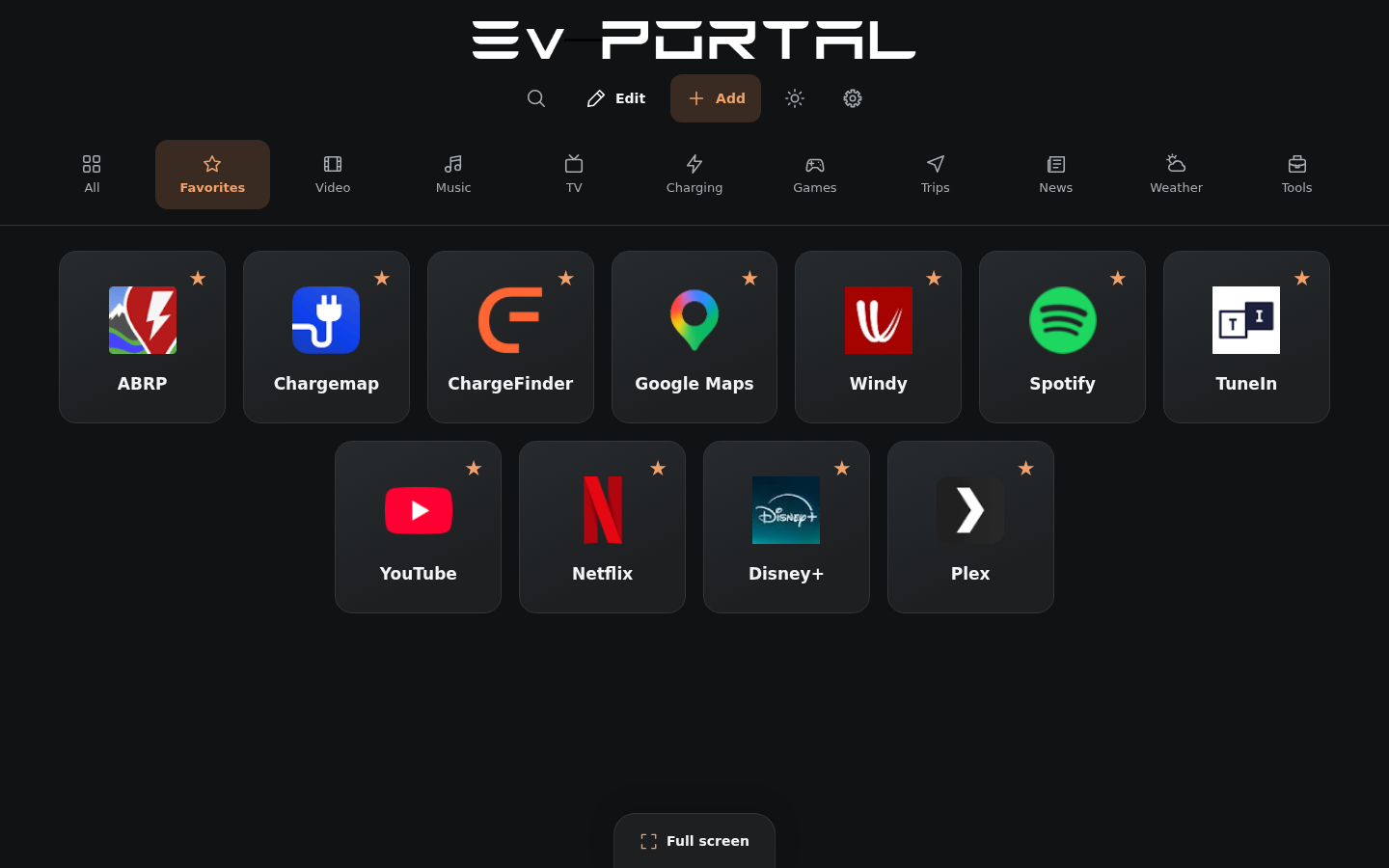
Get started in your vehicle’s browser
While parked, open the EvPortal address in your car’s browser. Save it as a browser favourite if that option is available so it is easy to find again. Opening the portal requires no app installation or Tesla account sign-in. The “+” button opens the catalogue to manage your shortcuts. In Settings, choose your language and home view. Your preferences stay on this device; a backup lets you keep a copy of your shortcuts or transfer them.
Find your services during a charging stop
Add links to your route and charging planners, radio stations, music and weather services. The catalogue is the same for everyone, with collapsible categories; you can also enter your own web address. Each shortcut opens the provider’s website, with its own access conditions. EvPortal does not control charging or send commands to the vehicle. Use entertainment content while parked.
Tap a shortcut to open the service in a new tab. Dark mode is the default; your chosen light or dark theme is then saved. The eight languages are available in Settings with their native names and flags; Arabic is displayed from right to left.
Organize shortcuts
All shows your most frequently opened shortcuts first. Ties keep your manual order. The ranking is saved after reloading.
In a category or Favorites, tap Edit and move shortcuts using their handles. The star adds a favorite and the pencil lets you edit. Tap Done when finished. All keeps its automatic ranking.
With a keyboard, focus a handle, press Space, move with the arrow keys, then confirm with Enter. Escape cancels.
Add a shortcut or category
The “+” button opens the same catalogue for everyone. Expand or collapse a category, then use Add or Remove on a service. Create a shortcut and Create a category are at the top of the catalogue. The magnifying glass searches all your shortcuts.
Create up to five personal categories with names of up to 16 characters and an icon of your choice. More icons opens the additional choices. Use the pencil to edit a category. Older categories exceeding these limits are kept. Visible categories fit without horizontal scrolling.
A service can appear in several categories with one favorite status and one counter; All shows it only once. In Edit, open Other categories to choose where it appears. Deleting a category keeps services that also belong to another category.
Choose your home view
In Settings → Home, choose which categories to show and whether to open on your favourites. These preferences stay on this device and are not included in backups or QR transfers. Manage the catalogue using the “+” button.
Appearance
In Settings → Appearance, keep the Standard size or choose Small. Show names lets you keep the names below the logos or hide them. Standard size and visible names are the defaults; your choices stay on this device.
Phone: send or receive
- In Settings → Backups → Phone, choose Send or Receive.
- Scan the displayed QR code with your phone.
- To send from your phone, choose its shortcuts or a backup, then tap Send.
- On the receiving screen, tap Add to keep the backup on that device.
- To use its contents, open My backups → Restore.
QR codes are for phone transfers. Creating a code or link does not display a QR code.
The transfer is encrypted and valid for five minutes when the service is available. It sends a snapshot without automatic synchronization. Receiving a backup does not replace your shortcuts.
Code or link
In Settings → Backups → Code or link, Create prepares a code and an EvPortal link to copy. Add accepts either and saves a local copy after validation. JSON files remain available under More options. The created Telegra.ph page is public; the local copy and online page are separate.
Tesla fullscreen
While parked, tap Fullscreen. On YouTube, choose Go to site to return to EvPortal in Theater mode. Shortcuts request a new tab; its behavior depends on the vehicle browser.
If the Tesla is not recognized, choose Open Tesla Theater in settings. On a computer, the button uses regular fullscreen. The redirect may change with vehicle or YouTube updates.
Opening a site does not guarantee video playback: country, account, subscription, and browser restrictions may apply. Use entertainment while parked.
Tesla manual · Method described by myTesla
Restore a backup
In Settings → Backups → My backups → Restore, choose a backup under On this device or Online, then check its contents. Only Restore replaces your shortcuts. More options in Settings lets you undo the last restore. Adding a code, link, file, or QR transfer saves a backup without applying it. Each browser keeps its own local list.
Test a local preview
The QR uses the address of the open portal. On a phone, localhost or 127.0.0.1 refers to the phone itself. For testing across devices, both must be able to reach the portal and relay over HTTPS. Backup codes and links use the public EvPortal address.
About and privacy
EvPortal is free and is not affiliated with Tesla. Logos and translations are bundled with the site. Opening counts stay in your configuration, with no analytics service. Telegra.ph is contacted at your request; the account token stays separate from the share. Sites you open apply their own policies.
Frequently asked questions
Is EvPortal free?
Yes. The portal is free and is not affiliated with Tesla. Some linked websites may require an account or subscription; the service provider sets those conditions.
How do I prepare my shortcuts on my phone?
Open EvPortal on your phone and organise your shortcuts. In Settings, Phone offers QR transfers in both directions. On the receiving screen, Add keeps a backup. To use its contents, then choose My backups and Restore. Receiving a backup alone does not replace your shortcuts.
Does EvPortal work offline?
Your browser stores your configuration locally, but EvPortal does not offer an offline mode. You need a connection to load the portal, open services and transfer backups. A JSON file lets you keep an independent copy for a later restoration.